Guides
Visit https://app.coachqueue.com/authentication/login and log in using your email and password. After entering your credentials, click the Login button. Upon successful login, you'll be redirected to the CoachQueue Dashboard.
Student
Click on Students in the side navigation menu to navigate to the Students Page.
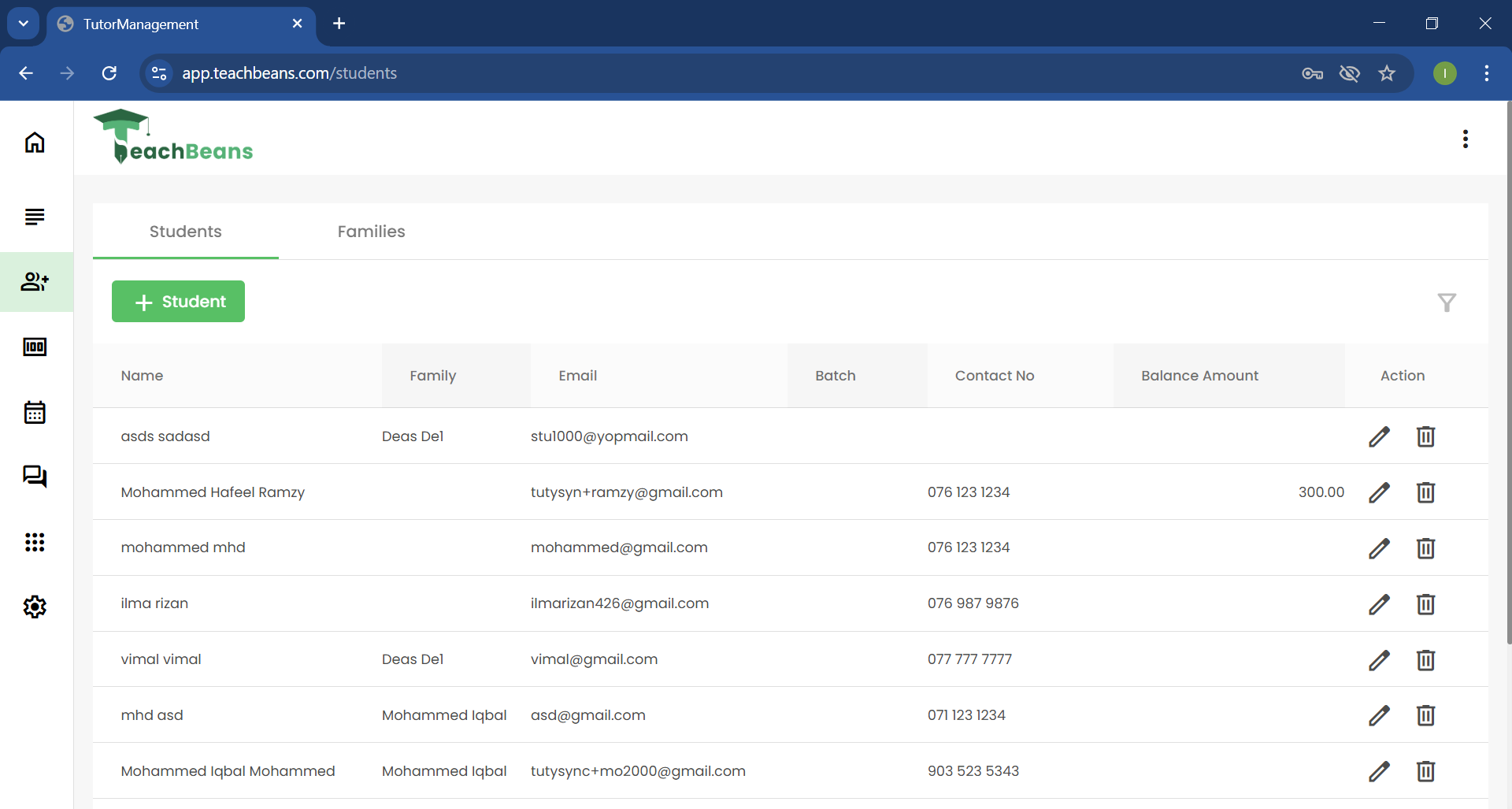
Create Student
click the Add Student button. This will open a sidebar where you can create a new Student.
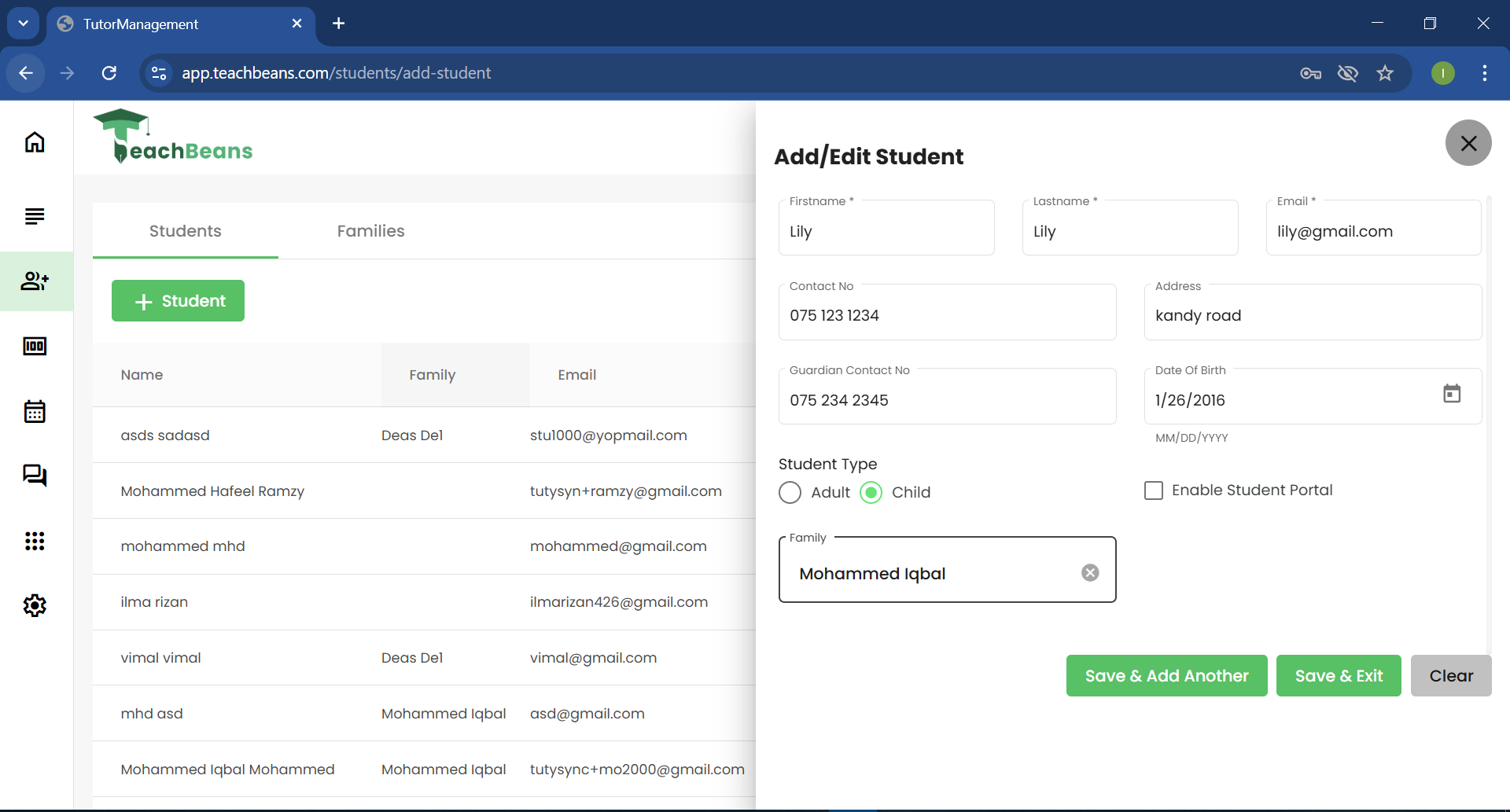
Complete the required columns with the correct details. If the student type is Child, select the family associated with them and then click the Save & Exit button. Alternatively, if you want to add another student, click the Save & Add Another button.Once successfully saved, the newly added student will appear in the table.
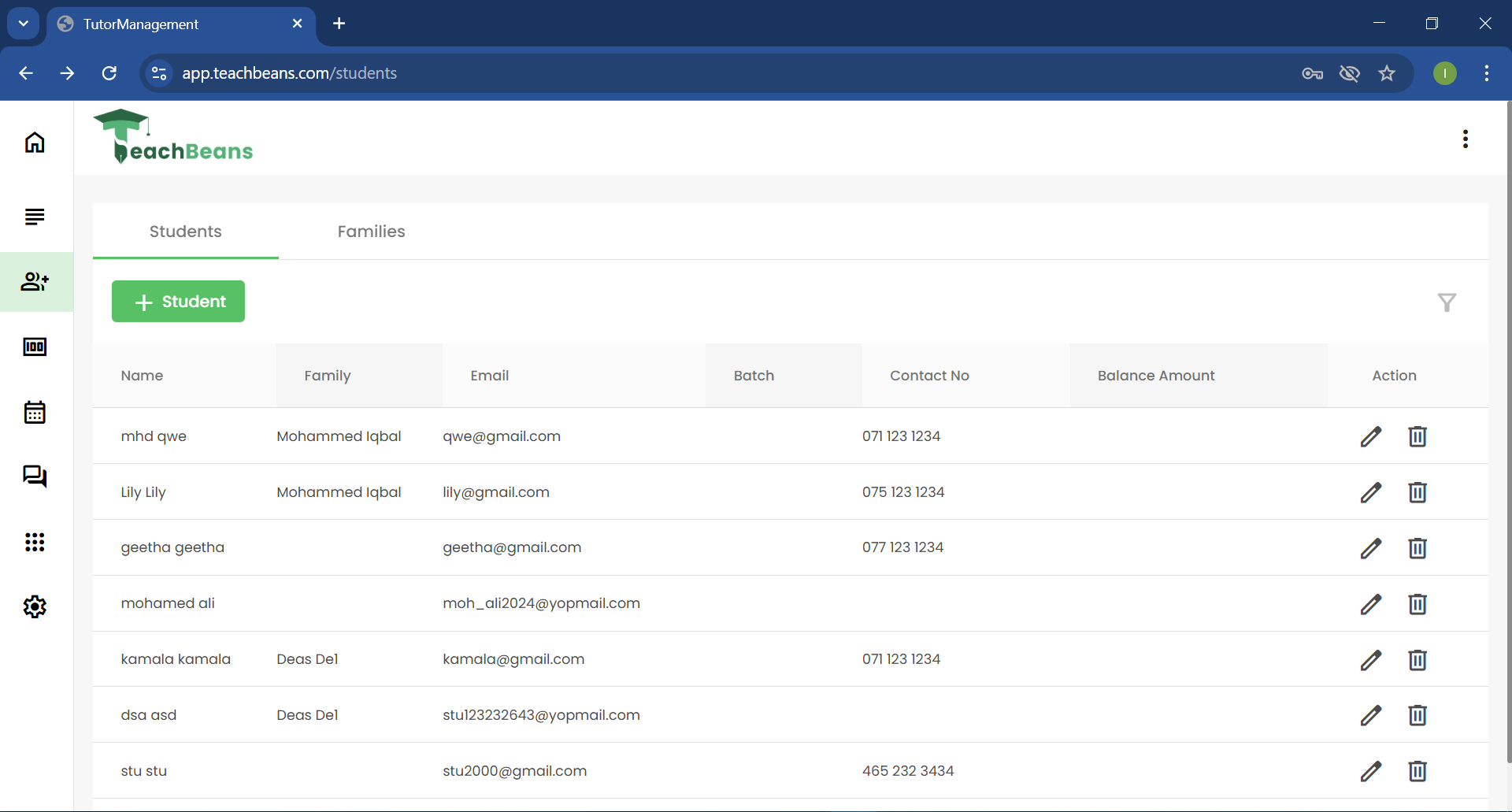
Edit Student
Click the Edit icon in the Action column of the table for the student you want to modify. This will open a sidebar where you can edit the selected student's details.
Make the necessary changes to the desired fields, then click the Save & Exit button to save your updates.
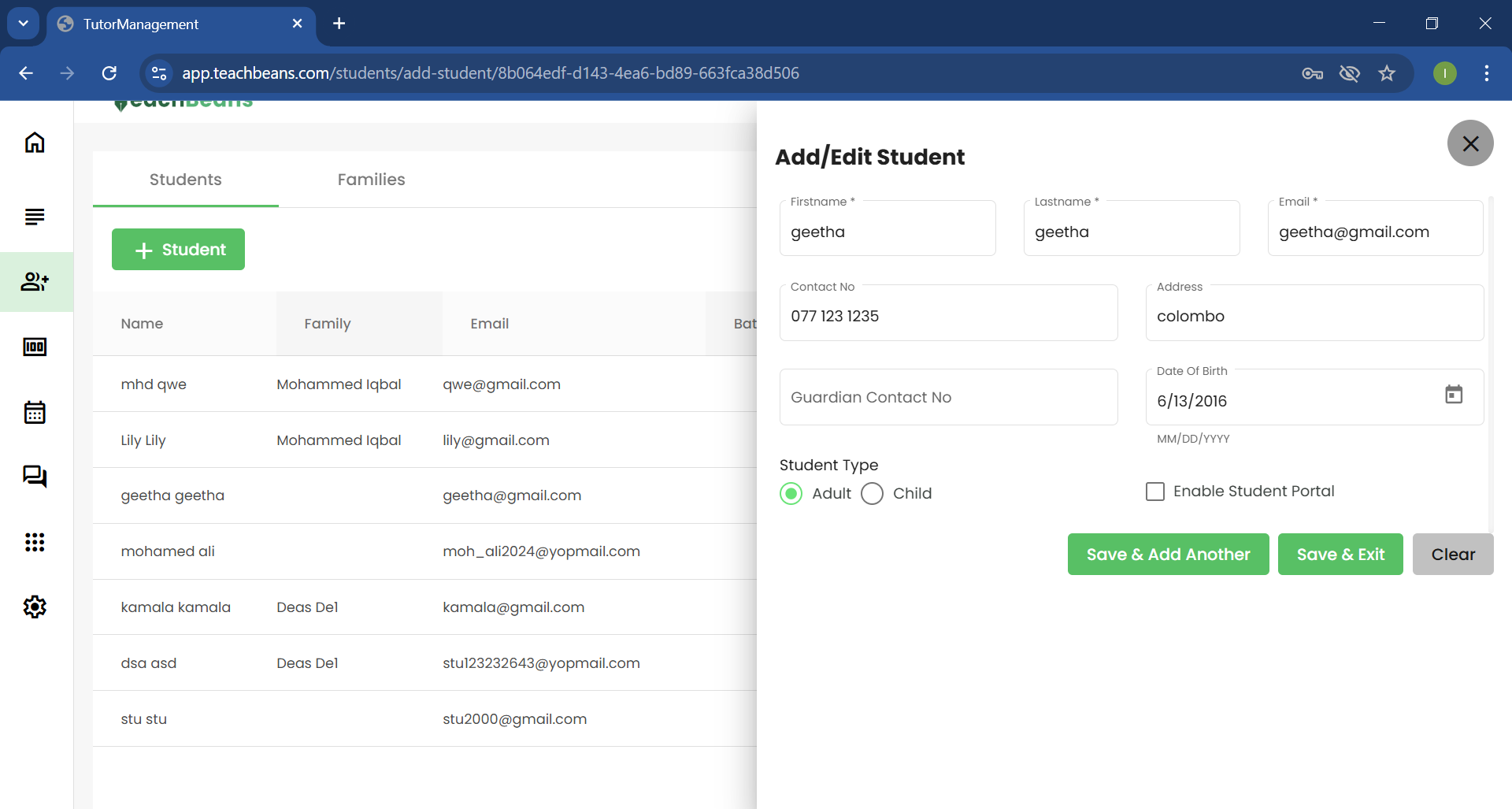
Delete Student
Click the Delete icon in the Action column of the table for the student you wish to remove. A confirmation popup will appear to verify your deletion.
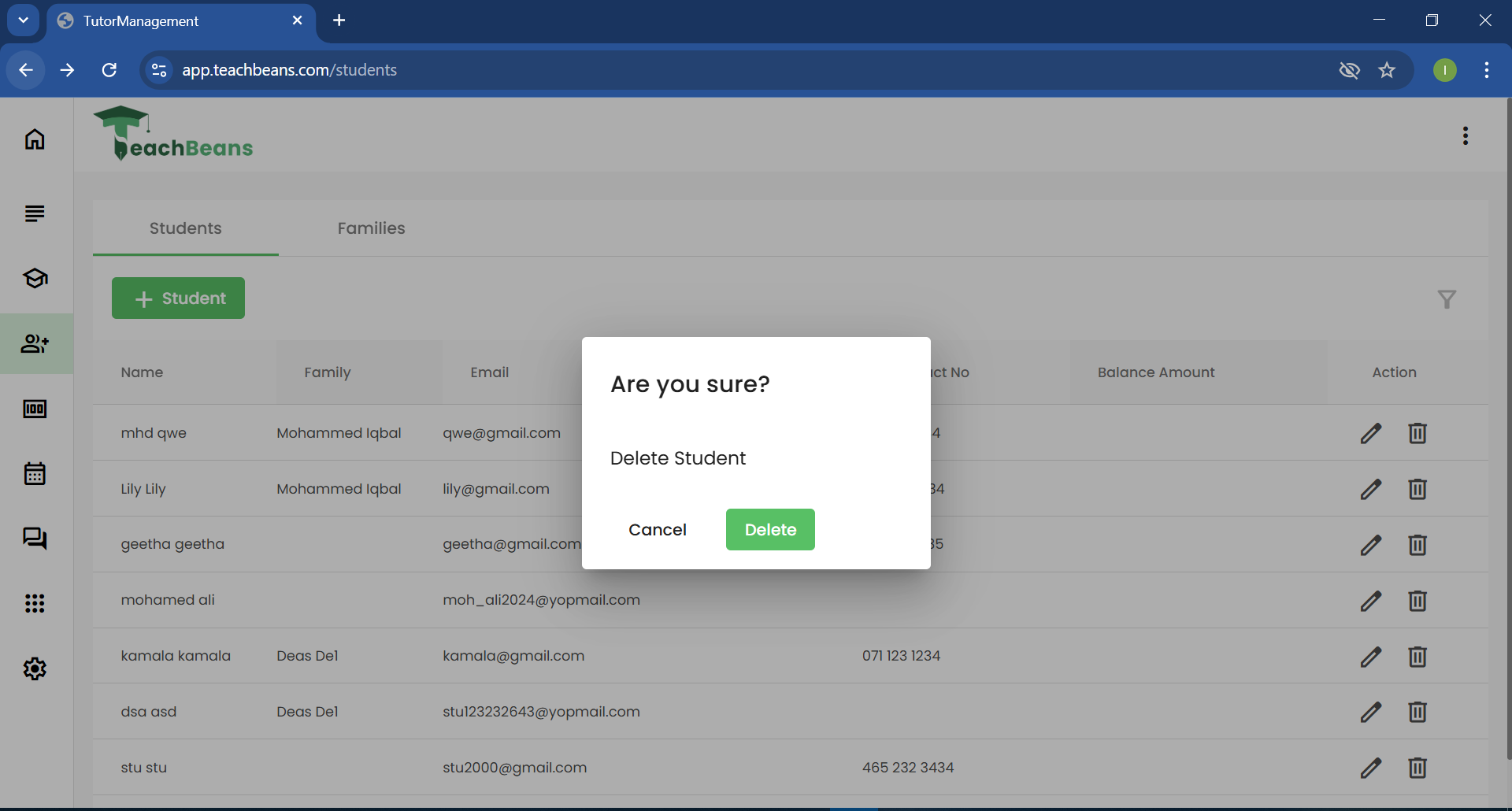
Click the Delete button in the popup to confirm that you want to remove the student.
Family
Click on Students in the side navigation menu to navigate to the Students Page.
Create Family
Move to the families tab click the Add family button. This will open a sidebar where you can create a new family.
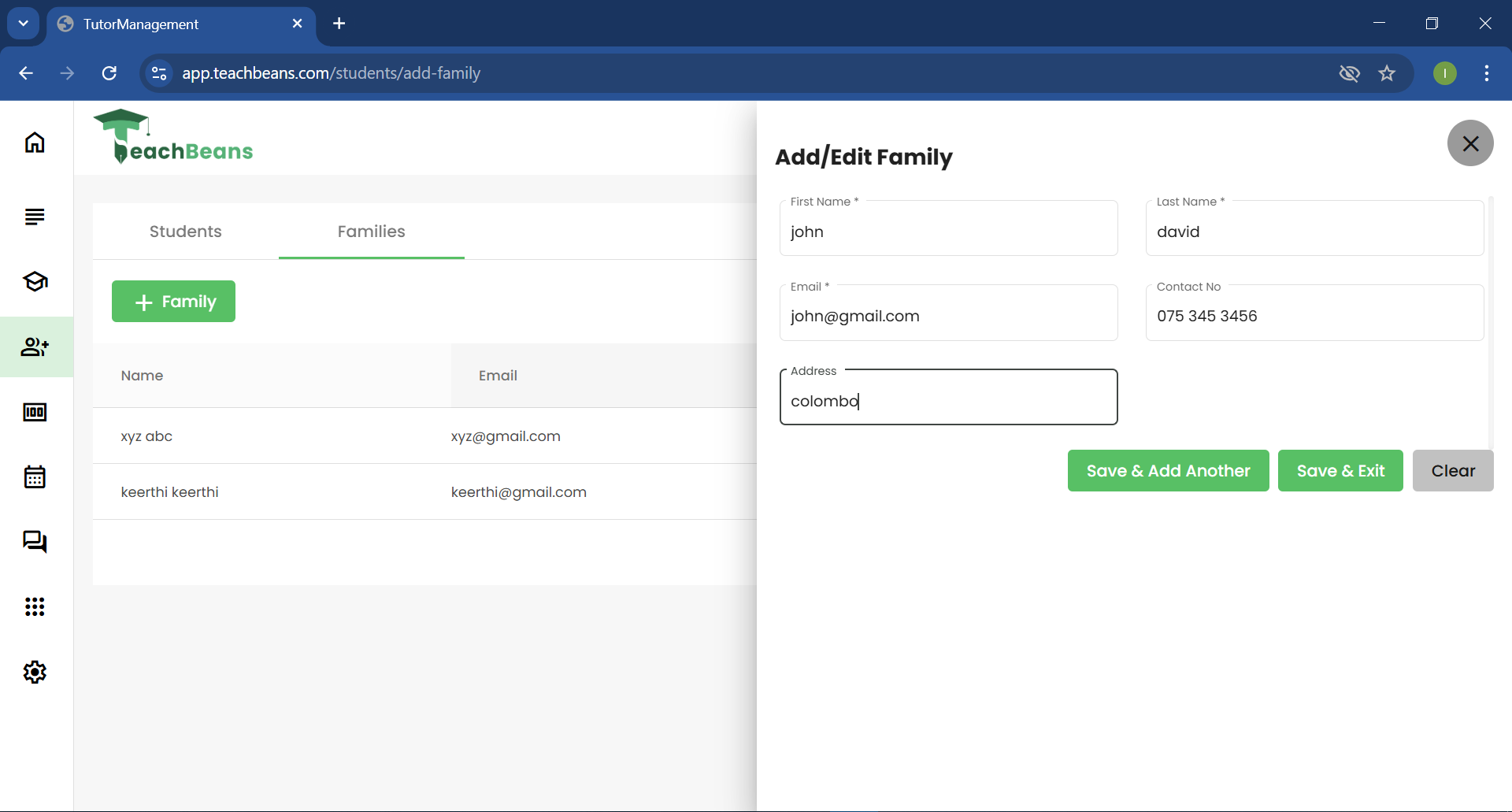
Complete the required columns with the correct details. click the Save & Exit button. Alternatively, if you want to add another family, click the Save & Add Another button.Once successfully saved, the newly added family will appear in the table.
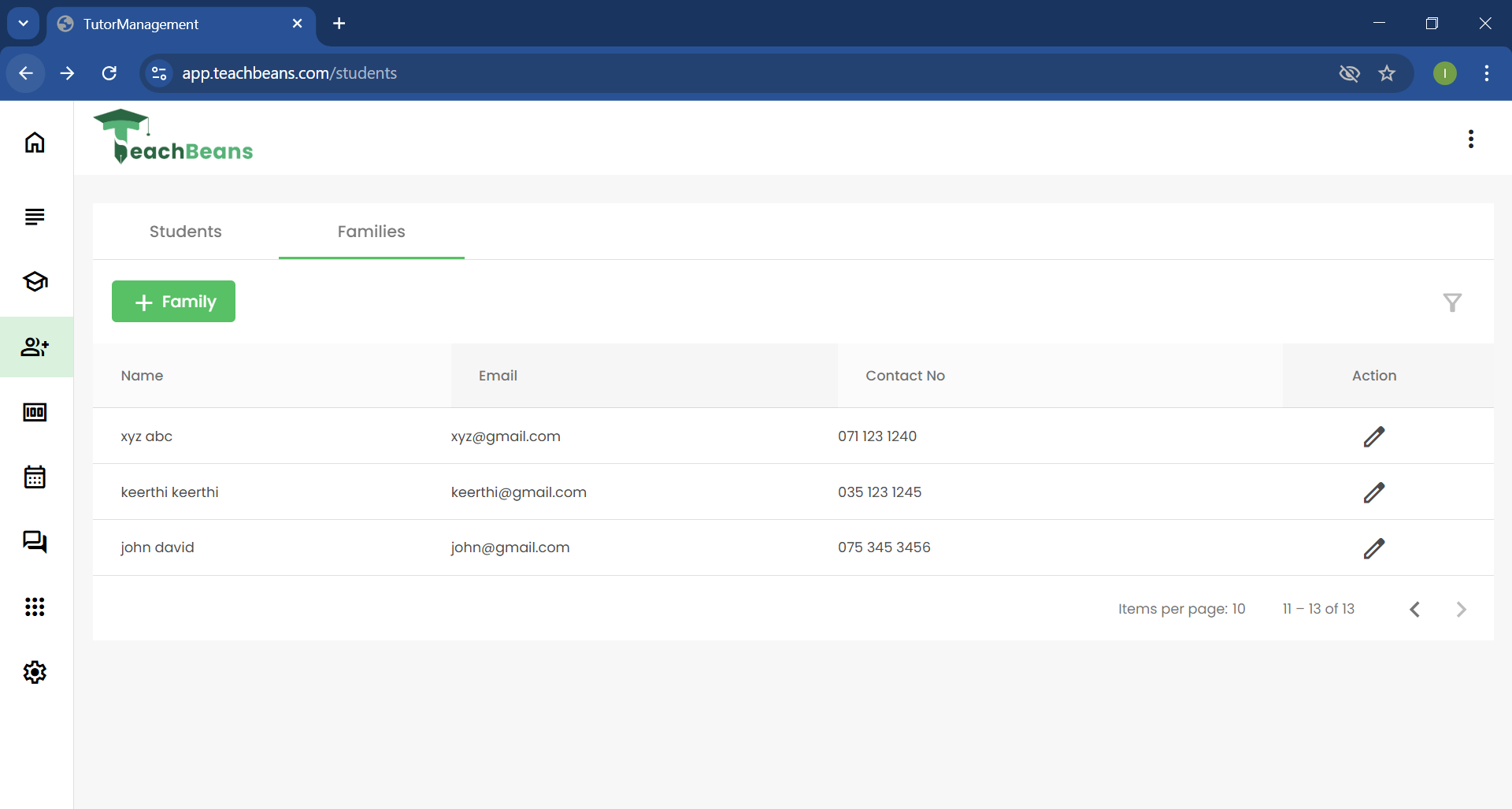
Edit Family
Click the Edit icon in the Action column of the table for the family you want to modify. This will open a sidebar where you can edit the selected family's details.
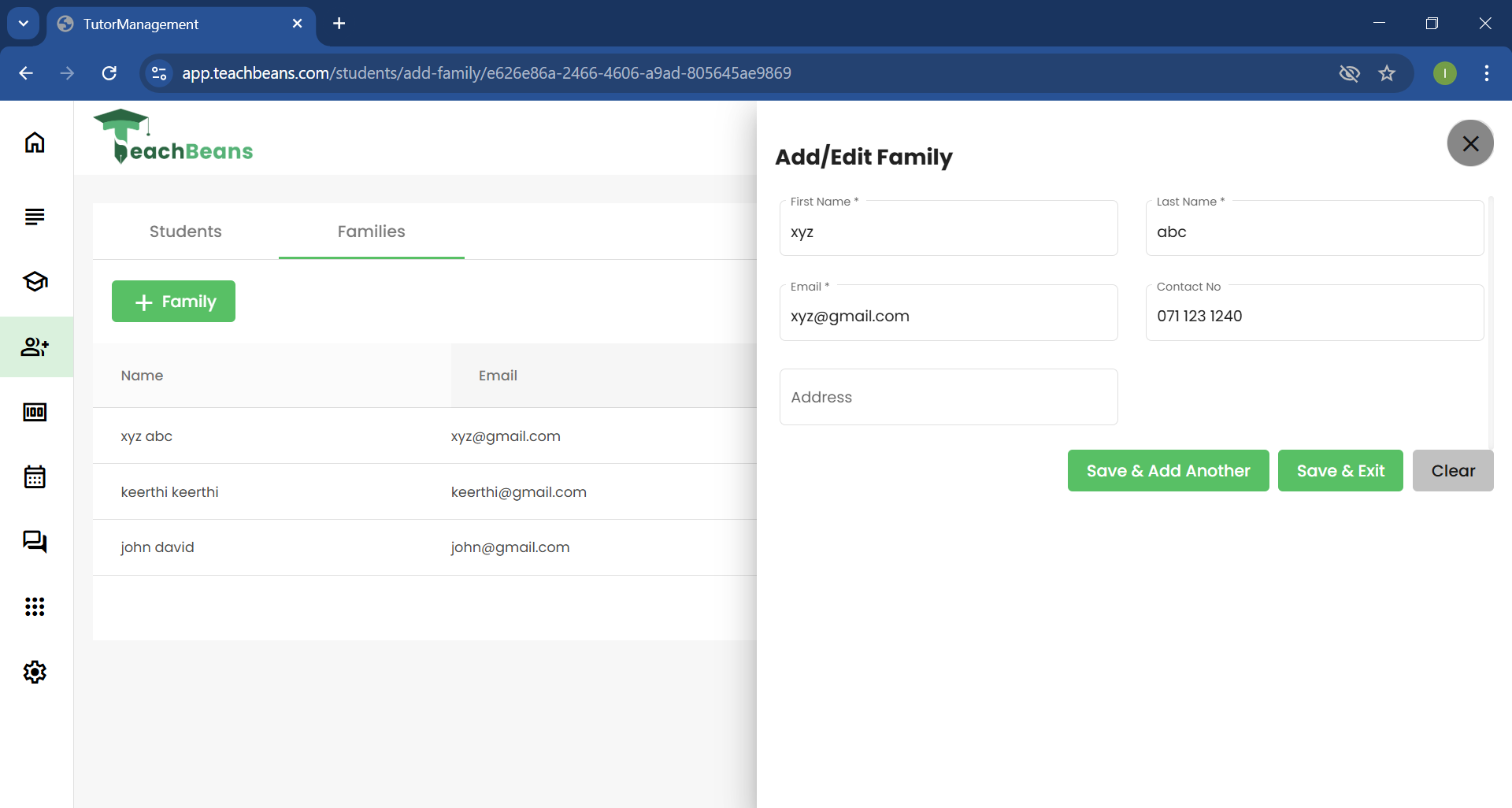
Make the necessary changes to the desired fields, then click the Save & Exit button to save your updates.
Subject
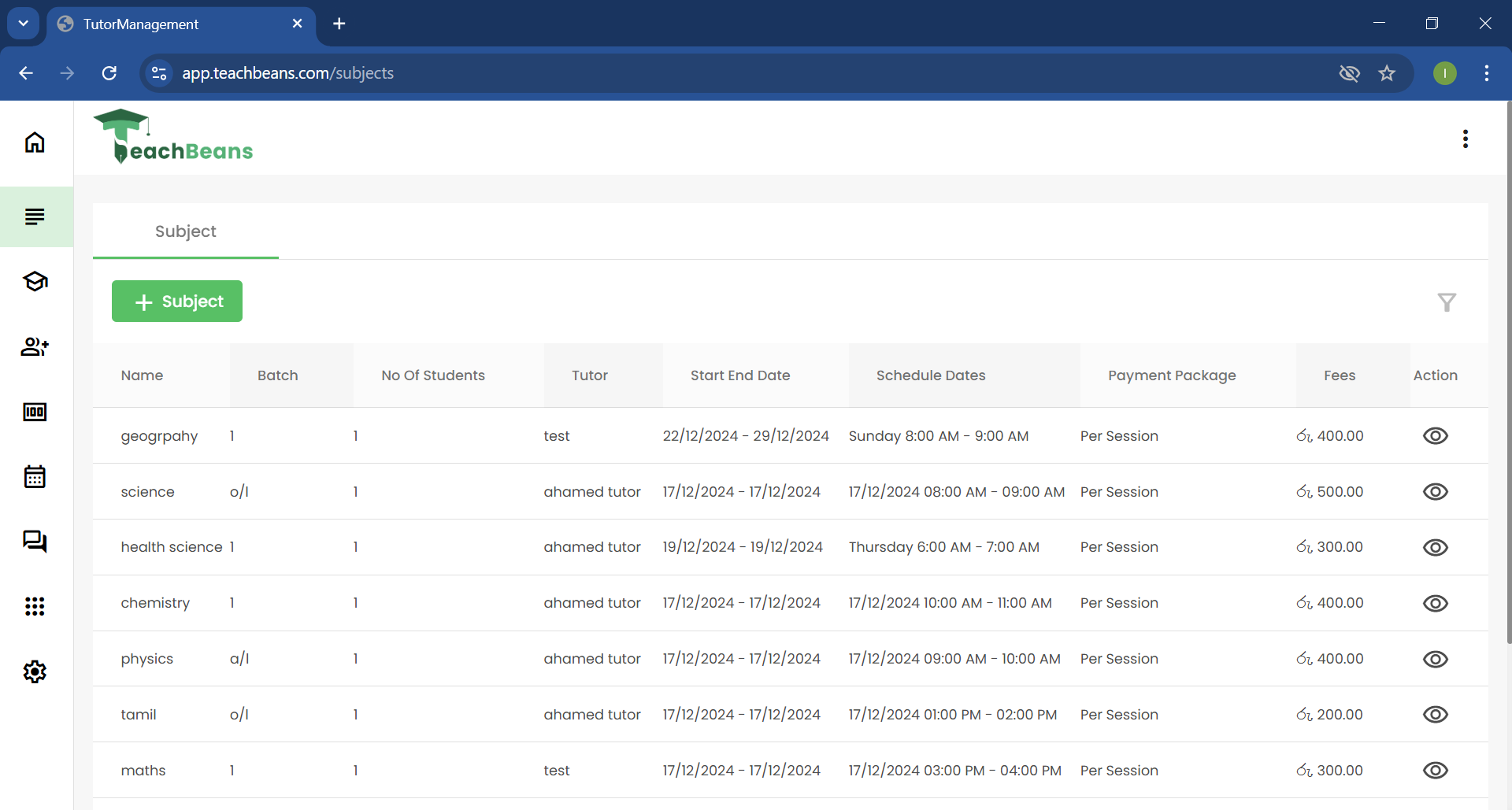
Click on Subjects in the side navigation menu to navigate to the Subjects Page.
Create Subject
click the Add Subject button. This will open a sidebar where you can create a new Subject.
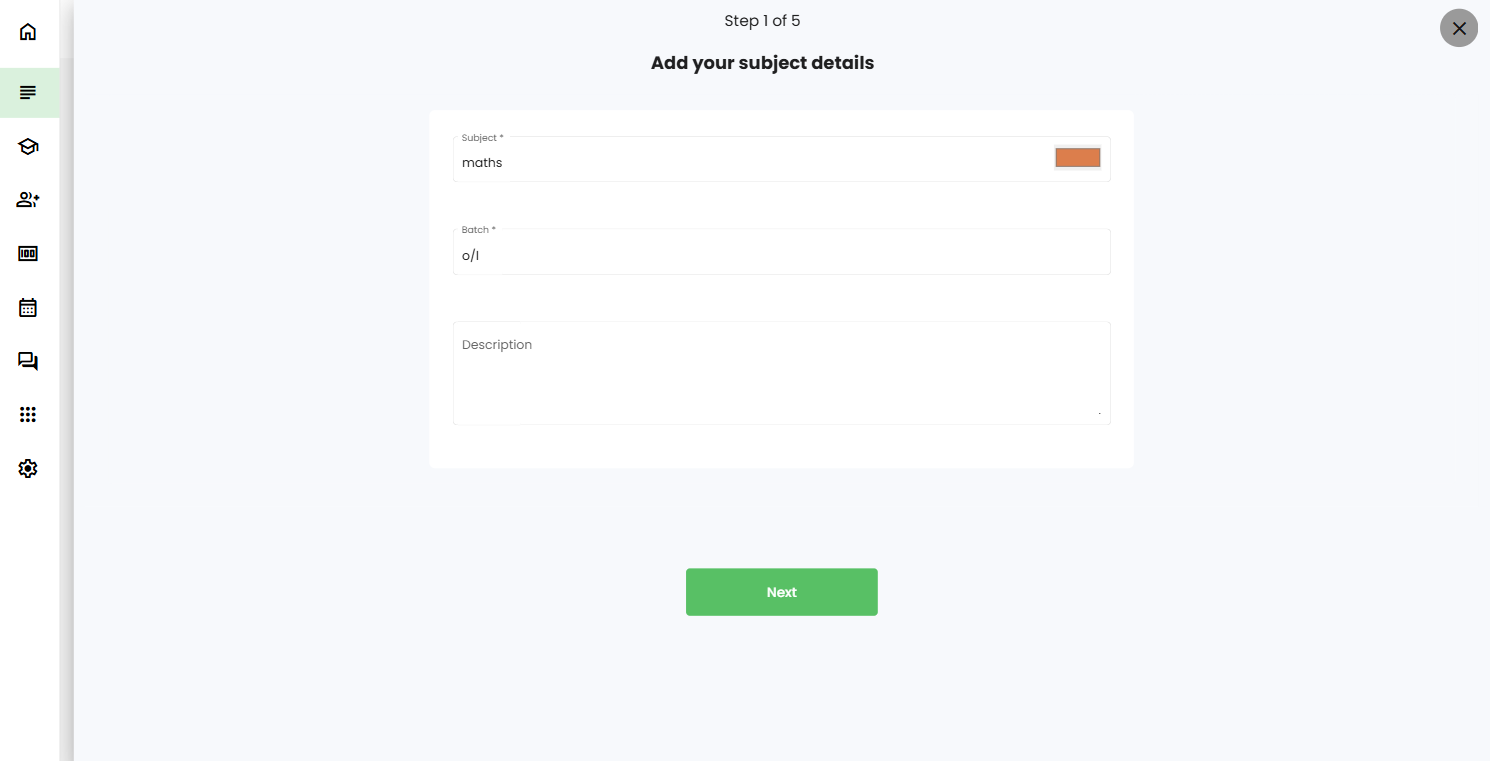
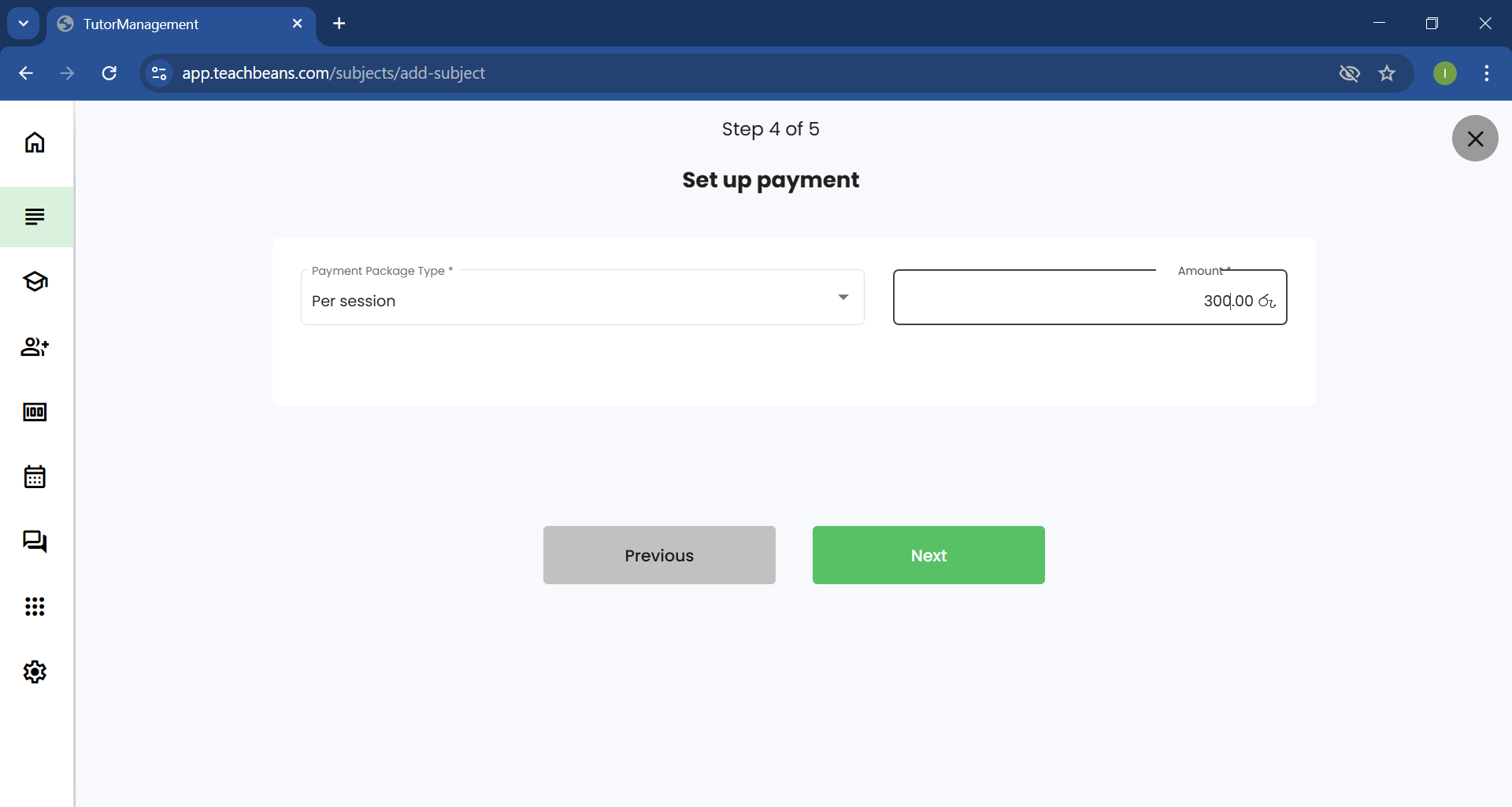
While creating a subject, there are 5 steps to complete. Fill out all the required fields in each step and click the Next button to proceed to the following step.
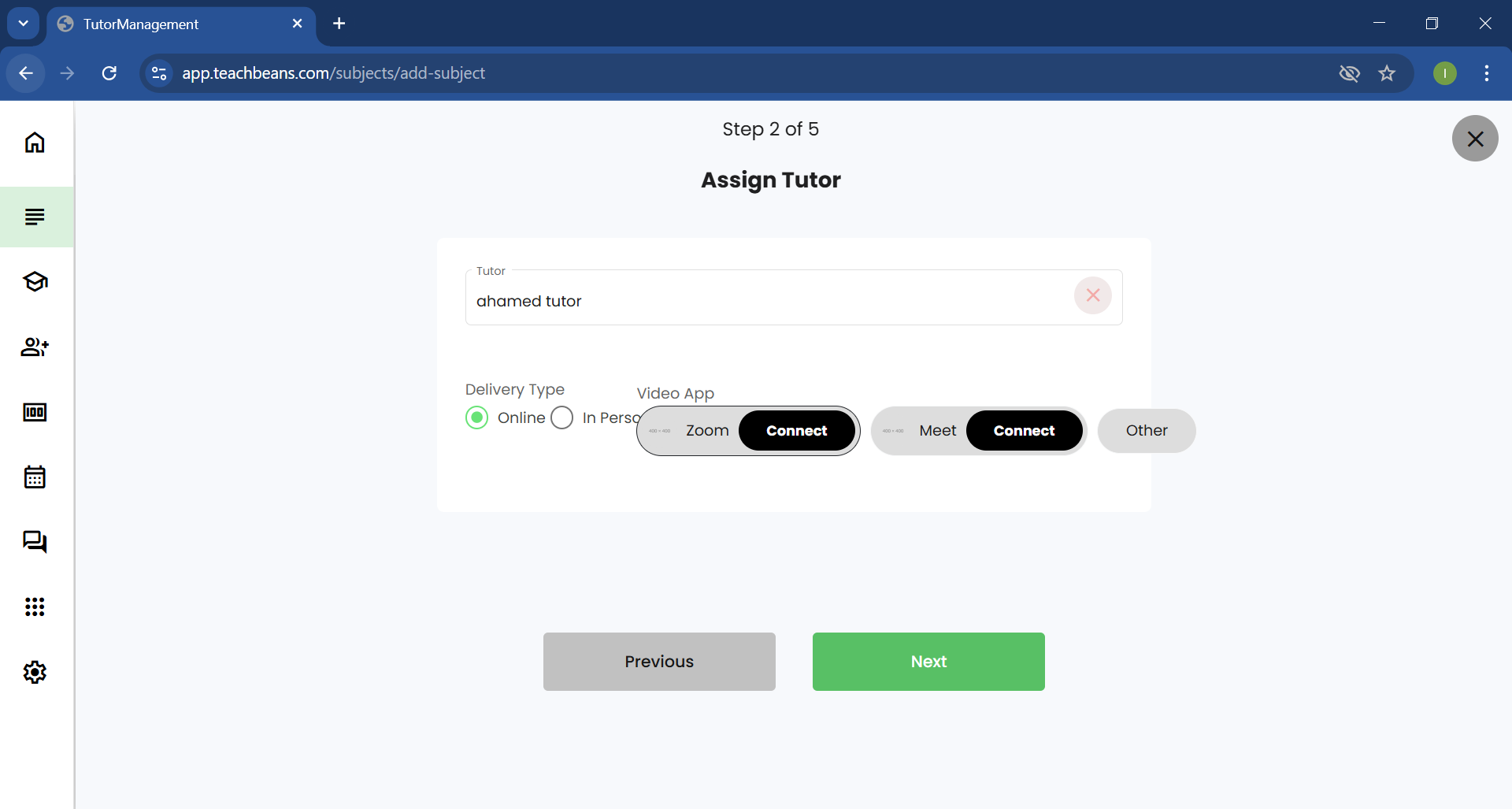
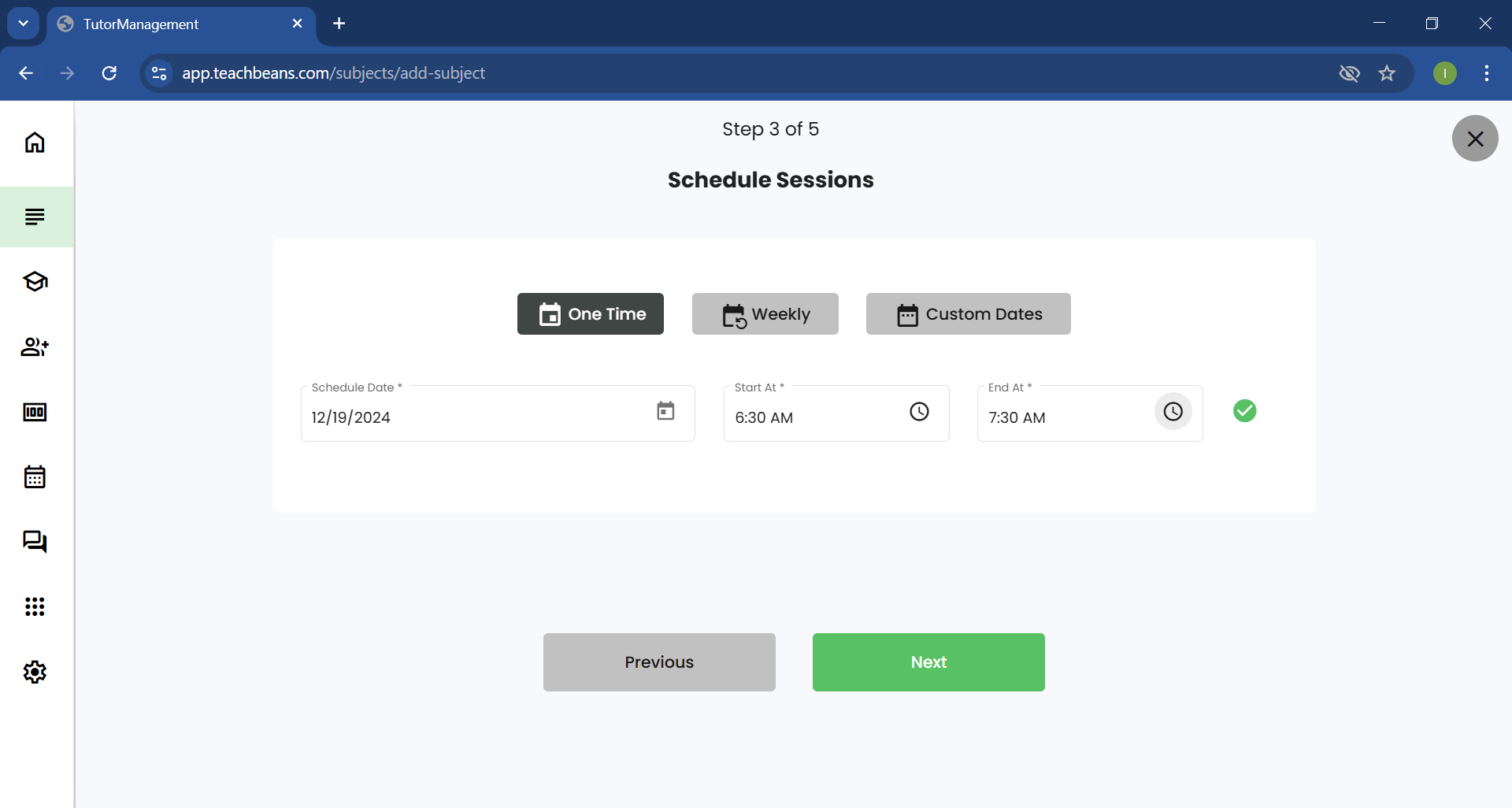
Based on the selected session type, the corresponding fields will appear. Fill them out as needed and click the Next button to proceed.
After selecting the desired payment type, enter the amount and click the Next button to proceed.
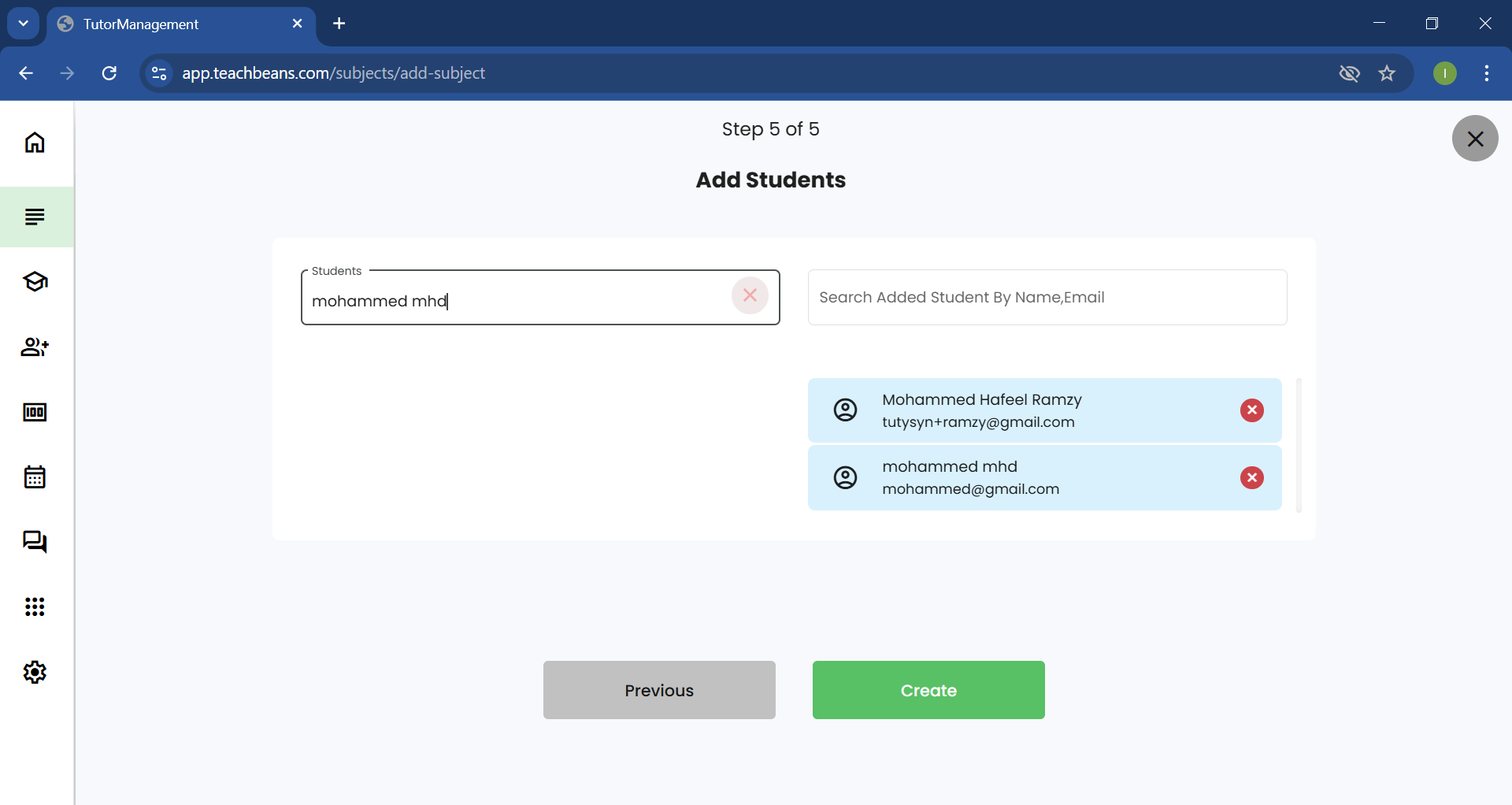
the newly added subject will appear in the table.
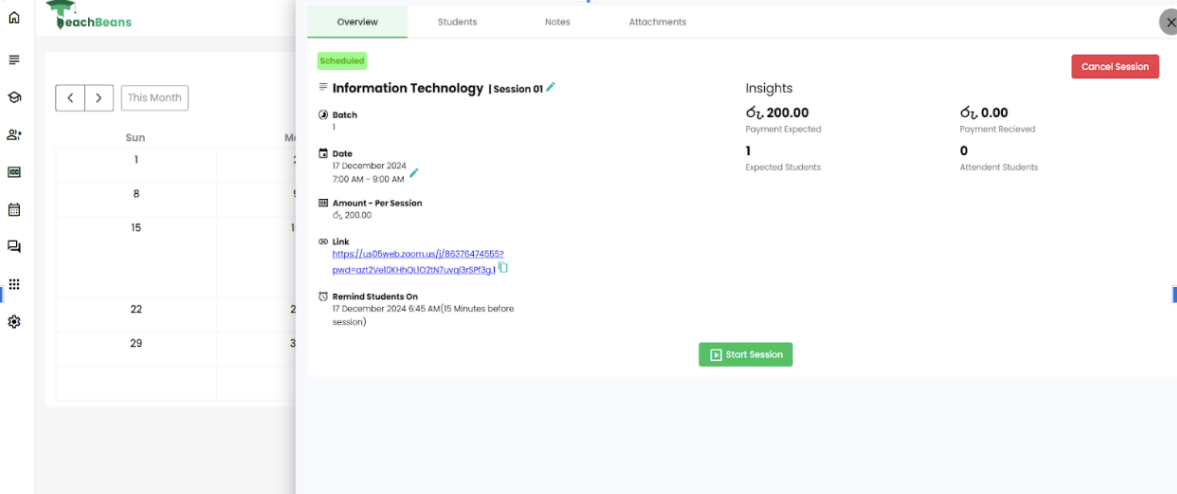
Once the subject is created, the zoom session will be created like this.
Calendar
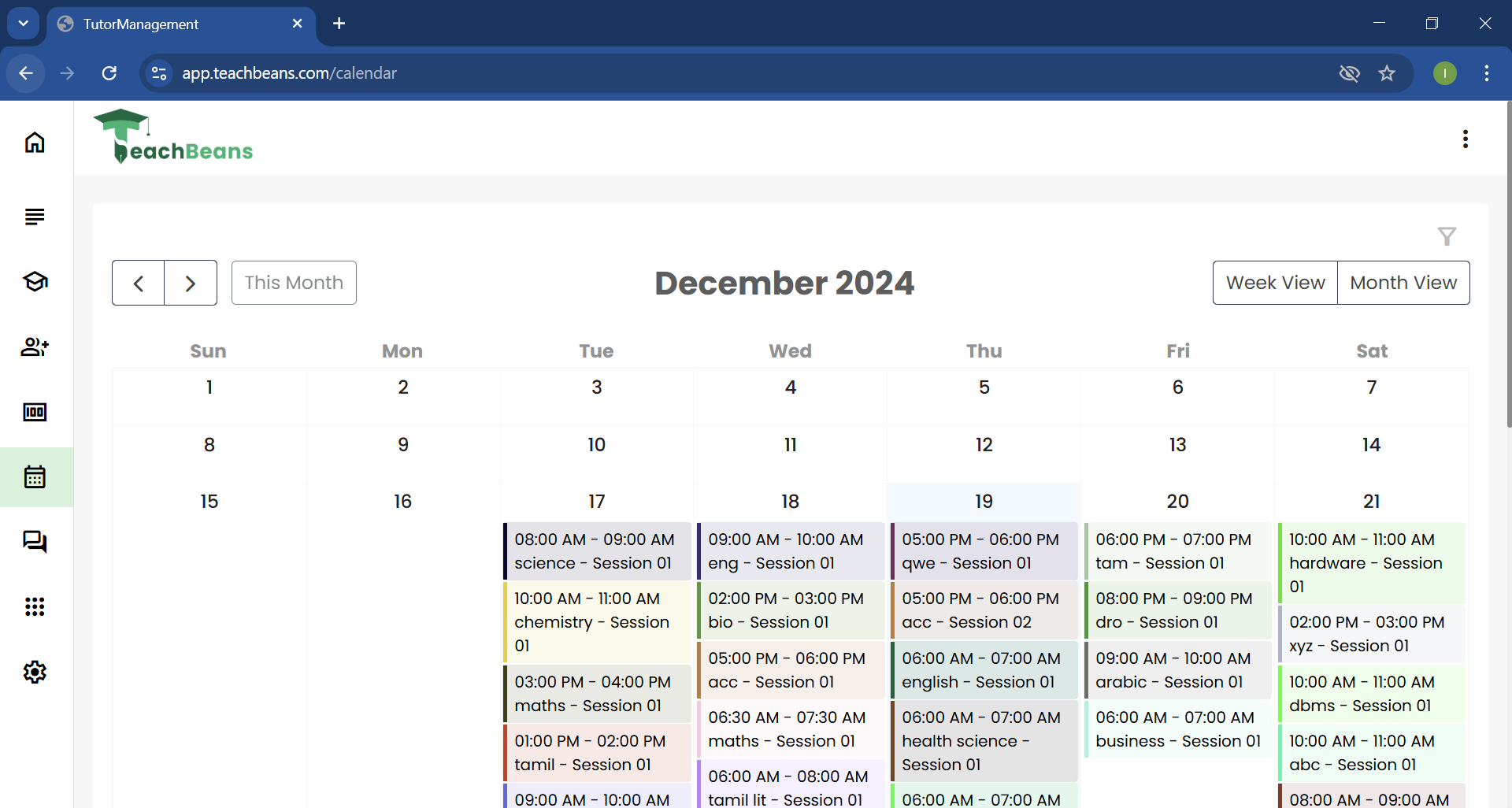
Click on Calendar in the side navigation menu to navigate to the Calendar Page.
Add Session
Click on the desired date to add a session. This will open a sidebar where you can input the session details.
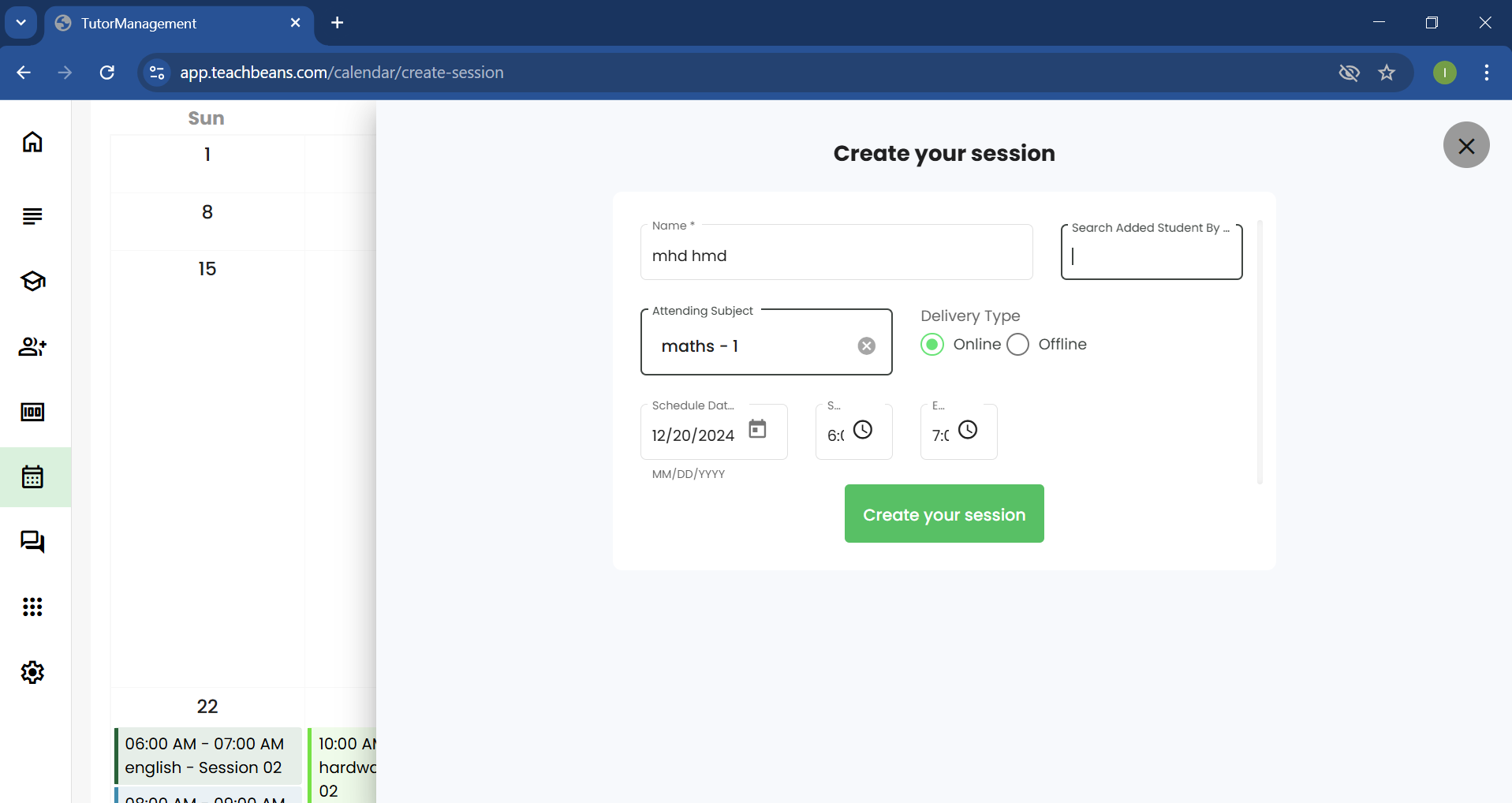
Fill in the required fields with the necessary details, then click the Create Your Session button. The newly added session will be displayed on the calendar.
Edit Session
Click on the session displayed under the date in the calendar to open a sidebar with an overview of the selected session.
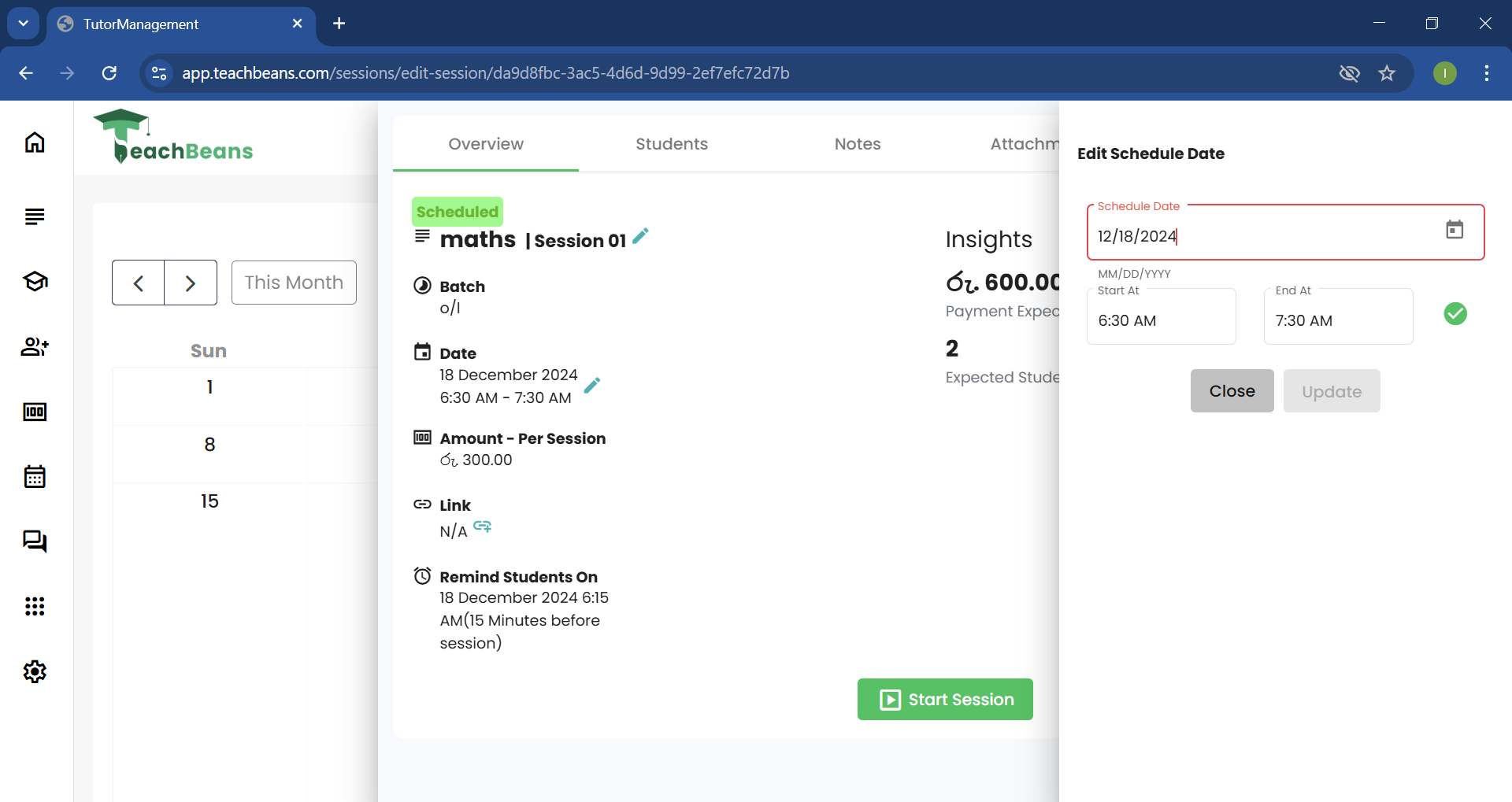
You can edit the time by clicking the Edit icon next to the scheduled date. This will open a sidebar where you can make the necessary changes to the fields. Once done, click the Update button to save your changes.
Delete Session
Click on the session displayed under the date in the calendar to open a sidebar with an overview of the selected session.
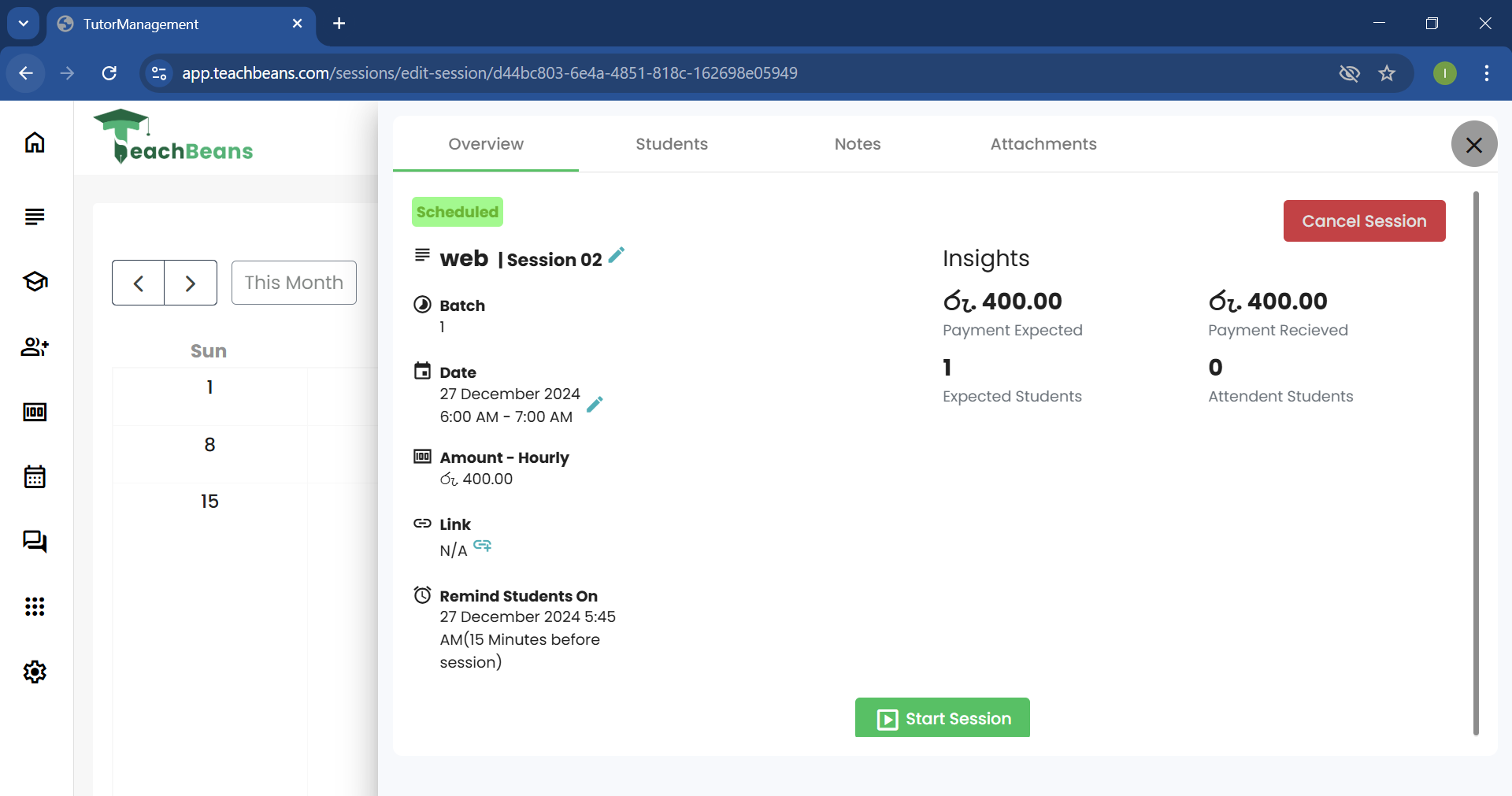
Click the Cancel Session button to open a confirmation popup for deleting the session.
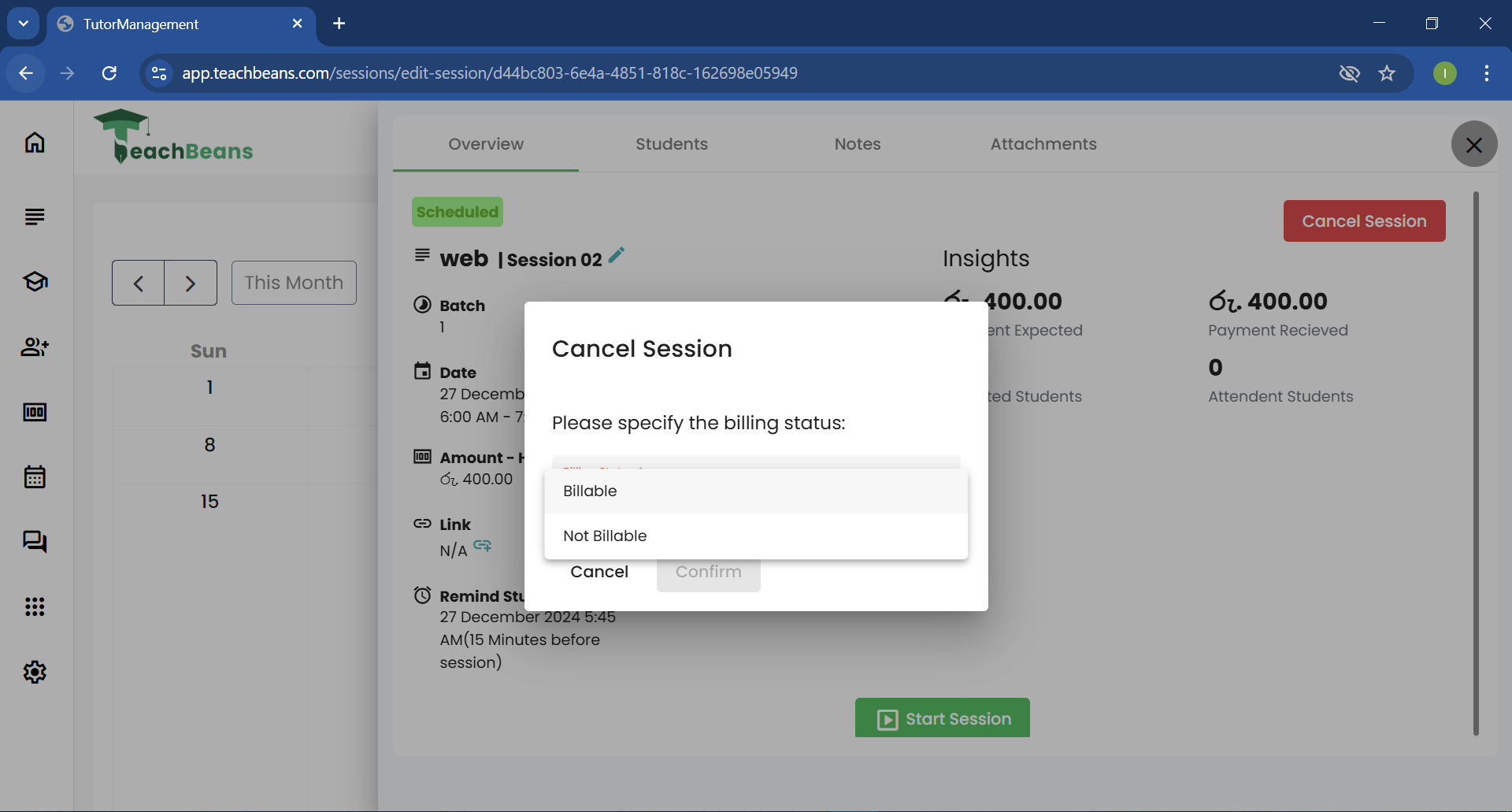
Fill in the required details in the popup, then click the Confirm button to proceed.
Payment
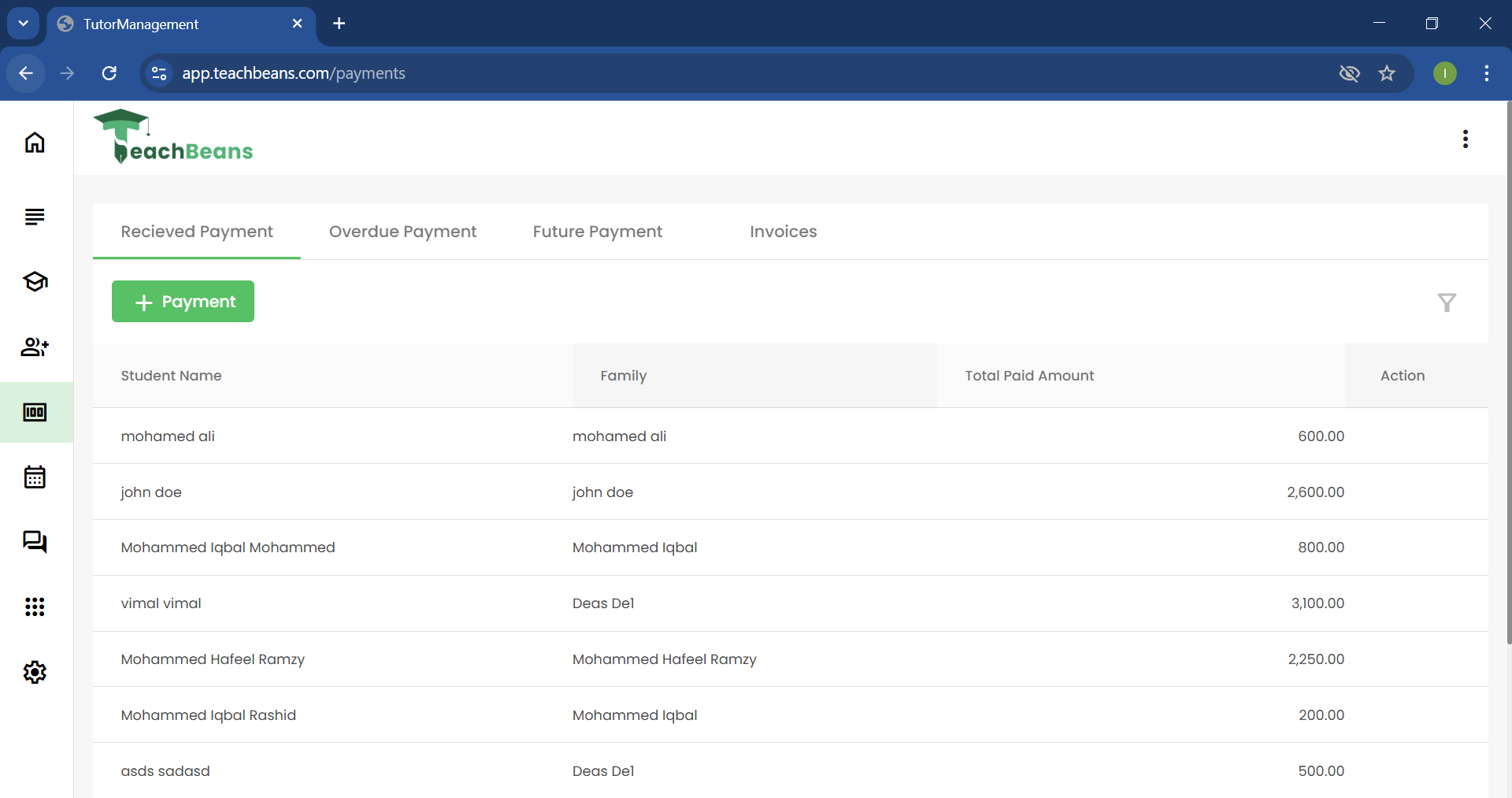
Click on Payments in the side navigation menu to navigate to the Payments Page.
Add Payment
Click the Add Payment button to open a sidebar with a payment form.
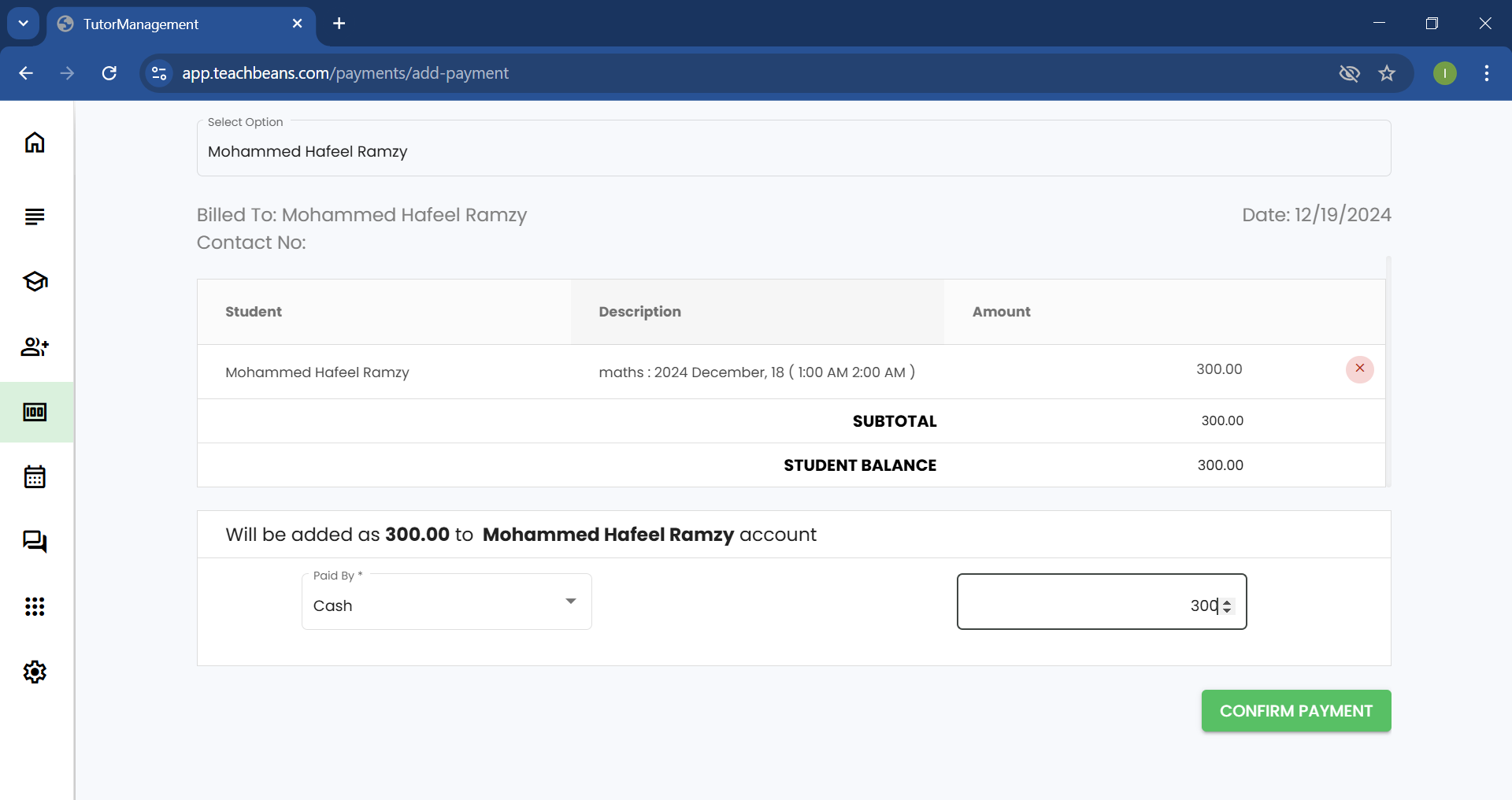
fill the columns with the correct details. from the amount you can pay full payment or the partiall payment and click the confirm payment button to successfull payment the added payment will appear in the receiced tab table .
Add Invoice
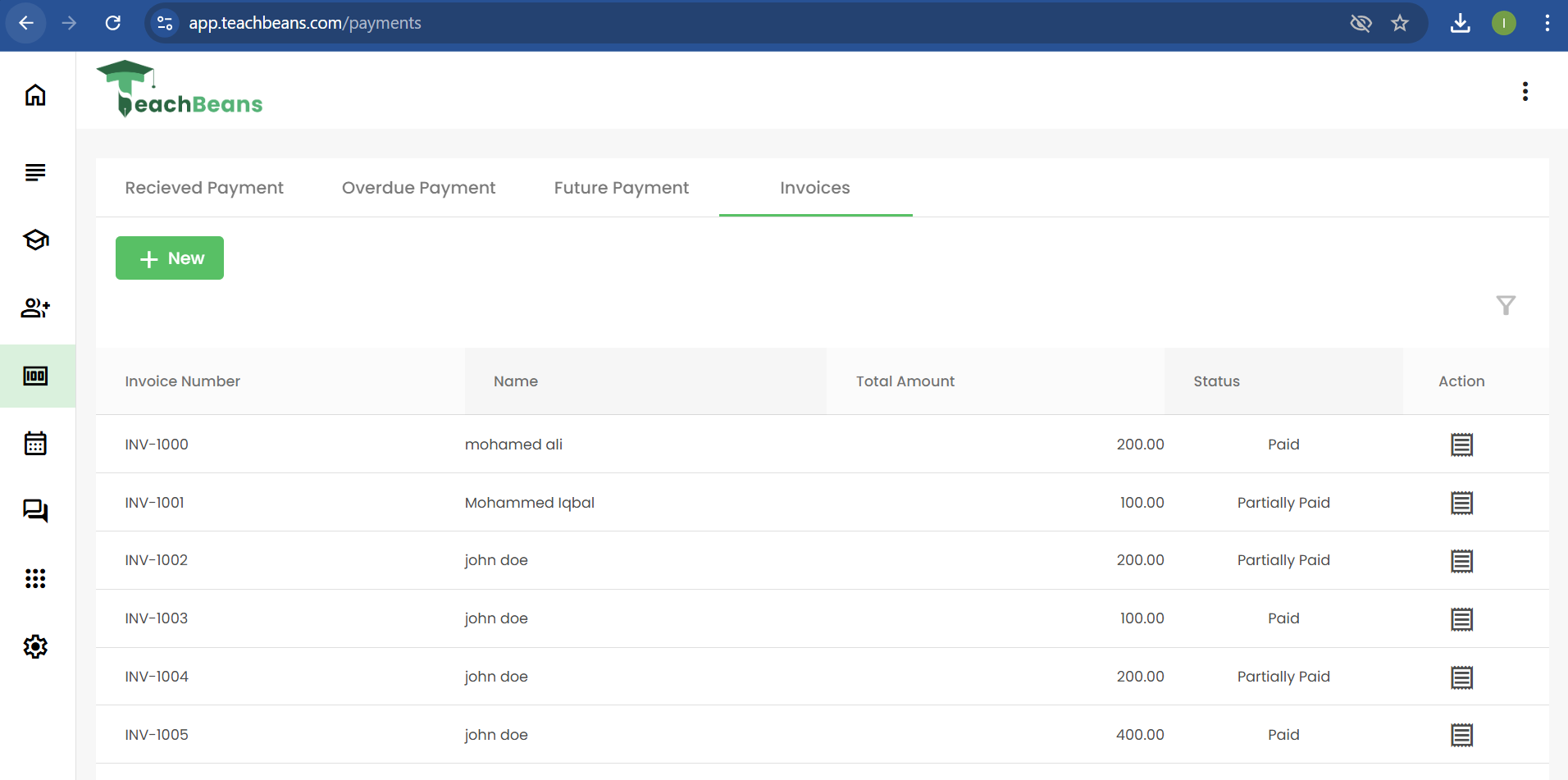
Click the Add New button to open a sidebar with a invoice form.
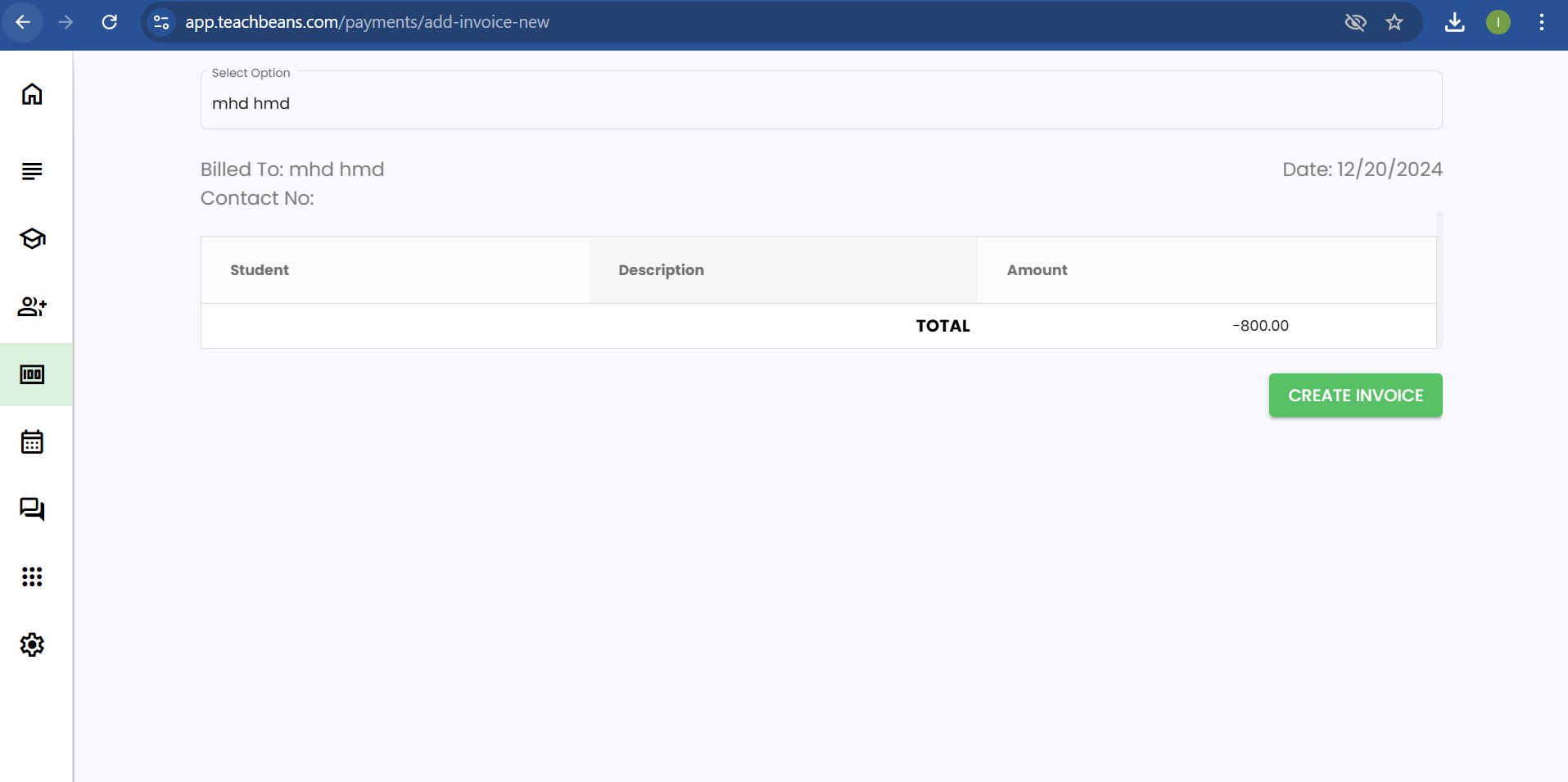
Select the student for whom you want to create an invoice and click the Create Invoice button. Once the invoice is successfully created, it will appear on the Add Payment page.
Settings
Click on Settings in the side navigation menu to navigate to the Settings Page.